


Canva is a widely popular online graphic design tool. It offers various features that allow users to create presentations, postcards, social media graphics, and all types of other designed content. In addition to its graphic design tools, Canva also provides users with the ability to edit videos online. Recently, Canva has integrated AI-powered features for generating images and videos. In this blog, I will guide you on how to create videos using Canva AI.
Canva is available in both free and premium versions. The AI video generation feature is exclusive to premium users. If you don’t have a premium account yet, you may be able to access it for free by using your organizational email.
What is Canva?
Canva is an Australian multinational software company. It offers a user-friendly graphic design platform online. It was launched in 2013 to provide tools for creating social media graphics, presentations, postcards, promotional materials, and websites. Designed for both individuals and businesses, Canva simplifies the design process with its drag-and-drop interface.
Over the years, Canva has expanded its services to include a print product platform and a video editing tool, making it a versatile solution for a wide range of design needs.
Follow these steps to create an account and generate AI videos:
Create a Free Premium Account on Canva to Create Videos with Canva AI
To create an account on Canva, go to canva.com and click on the Sign Up button in the upper right corner, as shown in the attached screenshot. After clicking the Sign Up button, a form will appear on your screen. You will be given five different ways to create an account on Canva, including signing up with Google, Facebook, email, or your organizational email.
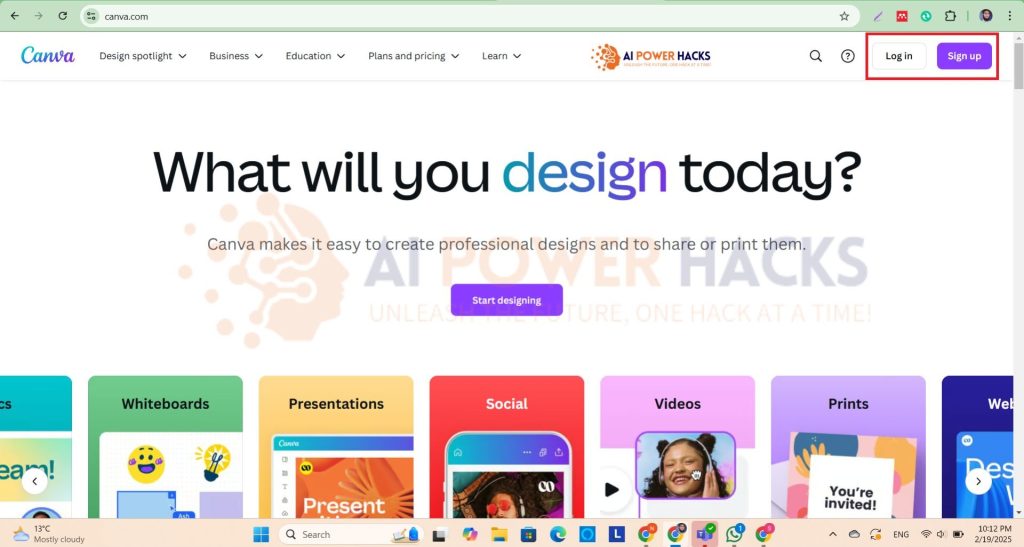
From there, you have to select the ‘Sign up with your work email’ option. Canva.com will ask you to provide your work email, and if you enter your university email, it will send an OTP to that email. You must verify your email by entering the OTP in the system. This will create a free premium account for you to use on Canva.

After completing this signup process, this is the time to create an AI generated video in just a few seconds.
Steps to Create Videos with Canva AI
Please follow these steps to generate an AI Video for you:
1. Select a Video Size from Canva Dashboard
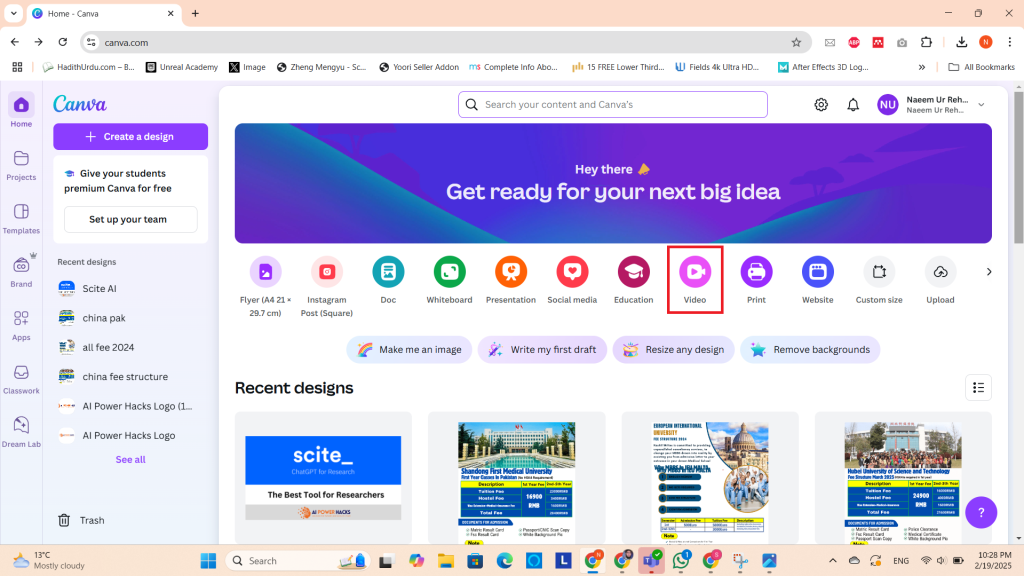
On the Canva dashboard, you will see various size options based on the category names in which your graphic design falls. You need to select ‘Video,’ and from there, choose the platform for which you are creating the video. This will open a blank white page of the same size you selected.
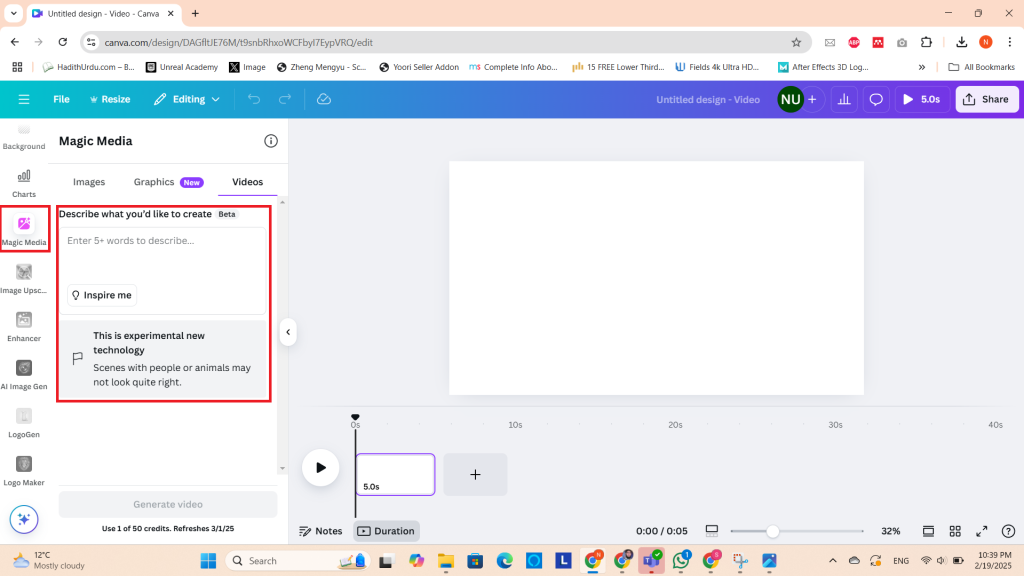
On the left-side menu bar, select the Magic Media option, then go to Videos, as shown in the screenshot below. Canva will ask you to provide a plot for the video. You need to describe what you want in your video. You can use Google, ChatGPT, or other content generation tools to find an idea for your video. After clicking Generate Video, a perfectly AI-generated video will be ready for you to download.
If you have any difficulty generating an AI video from Canva at any step, you can contact me in the comments, and I will help you. If you like this guide, be sure to share it with your family and friends.

1 Comment
Pingback: How To Get Canva Pro For FREE in 2025 - An Ultimate Solution - Raabta